Editorial
Show your achievement stats on Discord, Twitch, OBS and forums
Your scri.gg profile as a live card: in Discord link previews, as a Twitch panel, as a stream overlay that pops up every new achievement, and as a forum signature. Here is how each one looks and how to set it up.
AI-assisted Written with the help of AI and reviewed by the editorial team.
Every scri.gg profile comes with ready-made cards you can put anywhere: Discord, Twitch, your stream, a forum signature or your own website. They show your XP, your rank and tier, your achievements and your games, next to your own profile picture. You find all links and snippets on your account page under Share & embed.
The examples below are live: they show the profile of our editor LegoFighter.
Discord: just post your profile link
Paste your profile link into any Discord chat, for example https://storycockpit.com/en/u/LegoFighter. Discord shows a preview with your stats card:
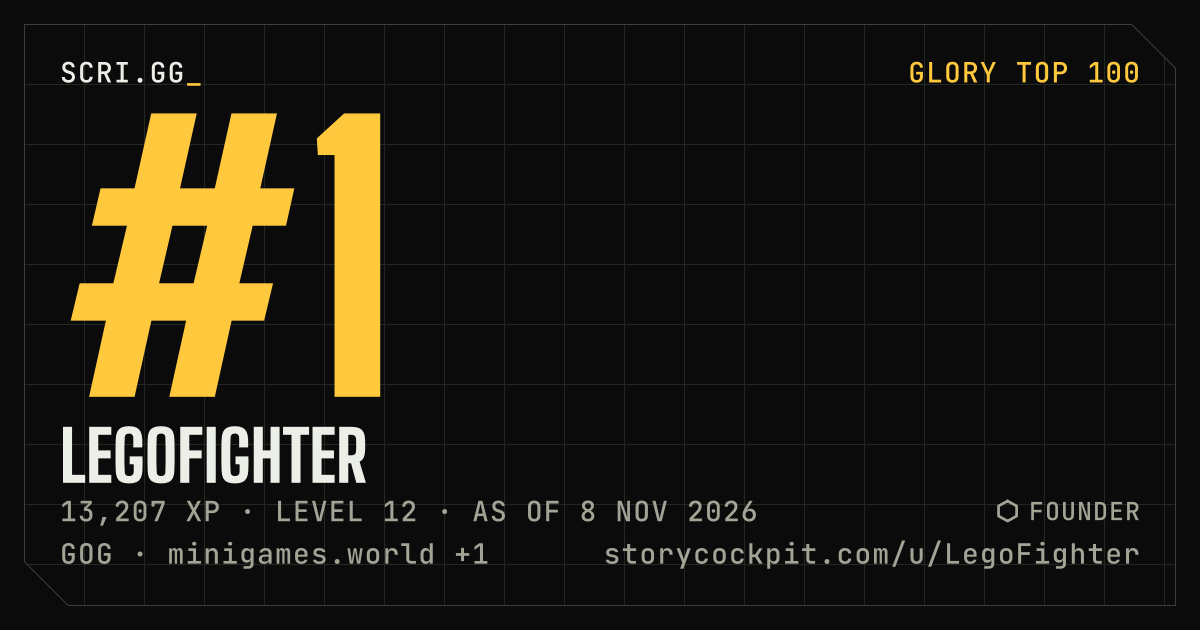
The same works in WhatsApp, Telegram, X, Bluesky, Slack and most other apps, because they all read the same preview data. Discord keeps a preview for a while, so a link you posted yesterday may still show yesterday's numbers.
You can also post the banner image directly: https://storycockpit.com/card/<your name>.png.
Forums, websites and GitHub: the banner
The banner (900 × 300) fits forum signatures, websites and GitHub profile READMEs:
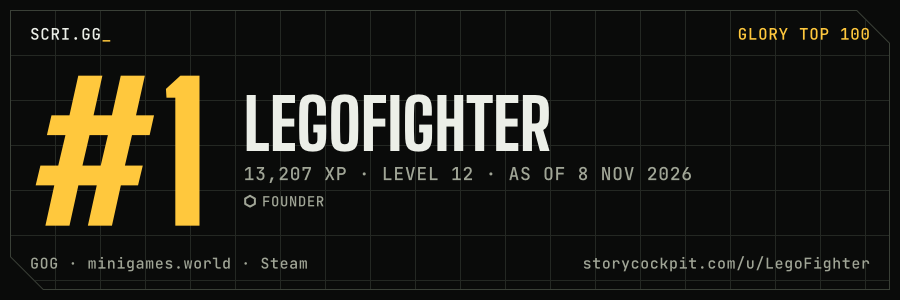
On your account page you can copy it as BBCode (most forums), Markdown (GitHub, Reddit) or HTML (websites). Each snippet links the image to your profile.
Twitch: a panel under your stream
The Twitch panel (shown at 320 × 200) is made for the "About" section below your stream:
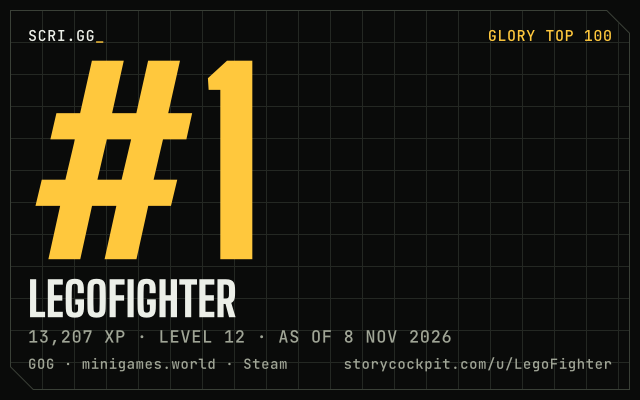
- Open the panel image from your account page and save it.
- On Twitch, go to your channel, open About, switch on Edit Panels and add a panel.
- Upload the image and set the link to your scri.gg profile.
Twitch only accepts uploaded images for panels, so the panel is a snapshot: upload a fresh one now and then. For numbers that update live, use the overlay.
OBS, Streamlabs and Twitch Studio: the live overlay
The stream overlay is a small widget for the corner of your stream. It shows your XP and rank and pops up a toast whenever you unlock an achievement on a linked platform.
- In OBS (or Streamlabs), add a new Browser source.
- Use the overlay link from your account page:
https://storycockpit.com/overlay/<your name>. - Set the size to 520 × 160. The background is transparent.
The overlay checks for new achievements once a minute. Your platforms sync every few hours on their own; press Sync now on your account page before you go live to get the latest numbers.
How fresh are the numbers?
The cards are refreshed about once an hour, the overlay data once a minute. That keeps them fast for everyone who sees them, however many people that are.
Sieht super aus, finde ich^^